Sign in with the email address we invited and the password you chose on key day.
In the Hall Sign in, from the link in your invitation or tendhall.com › Sign in
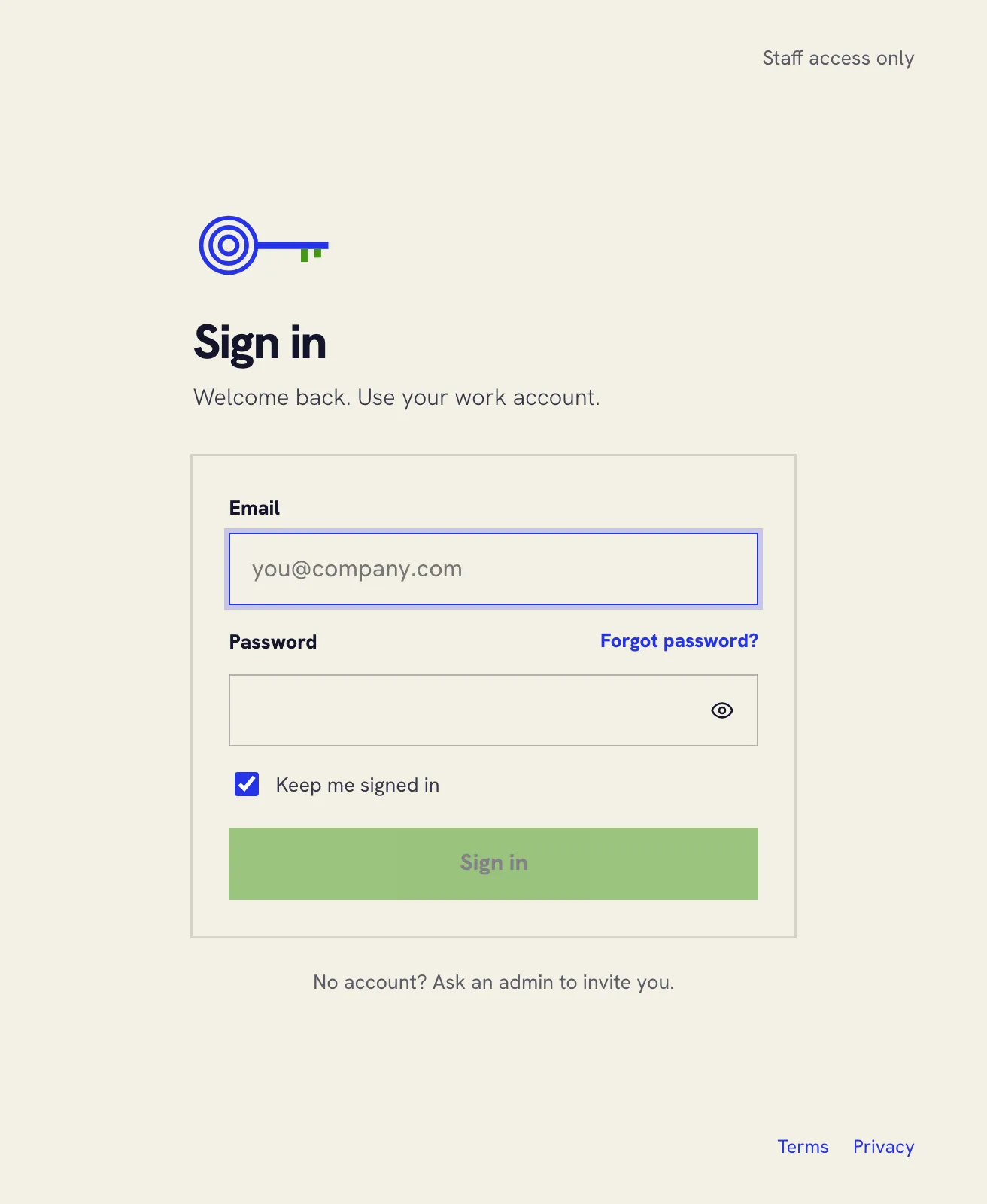
Signing in
- Open the Hall from Sign in on tendhall.com, or from the link in your invitation.
- Enter your email address and password.
- Leave Keep me signed in ticked on your own computer. Untick it on a shared one.
- Press Sign in.
If you work for more than one company in the Hall, you choose which one to open after signing in. To open another, sign out from the menu under your name and sign in again.
When you’ve forgotten your password
- On the sign-in screen, press Forgot password?
- Enter your work email address and press Send reset link.
- Open the email and follow its link.
- Choose a new password, type it again to confirm, and save it.
The email only goes to an address that has an account in the Hall. If it doesn’t arrive within a few minutes, check your spam folder, then write to us.
Choosing the Hall’s language
The Hall speaks English and Hungarian (Magyar).
- Open the menu under your name, at the bottom of the left-hand menu.
- Choose Language, then pick one.
The Hall remembers your choice on your account, so it follows you to other computers and phones.