A page is built from sections, one on top of the other: an opening, a few blocks of text, a row of numbers, a closing line with a button. You can add, move, copy and remove them.
In the Hall Website › Pages › a page › the outline
Adding a section
- In the outline, pick the section the new one should follow.
- Press Add section at the bottom of the outline.
- Pick the kind of section. It goes in after the one you picked, already open for its words.
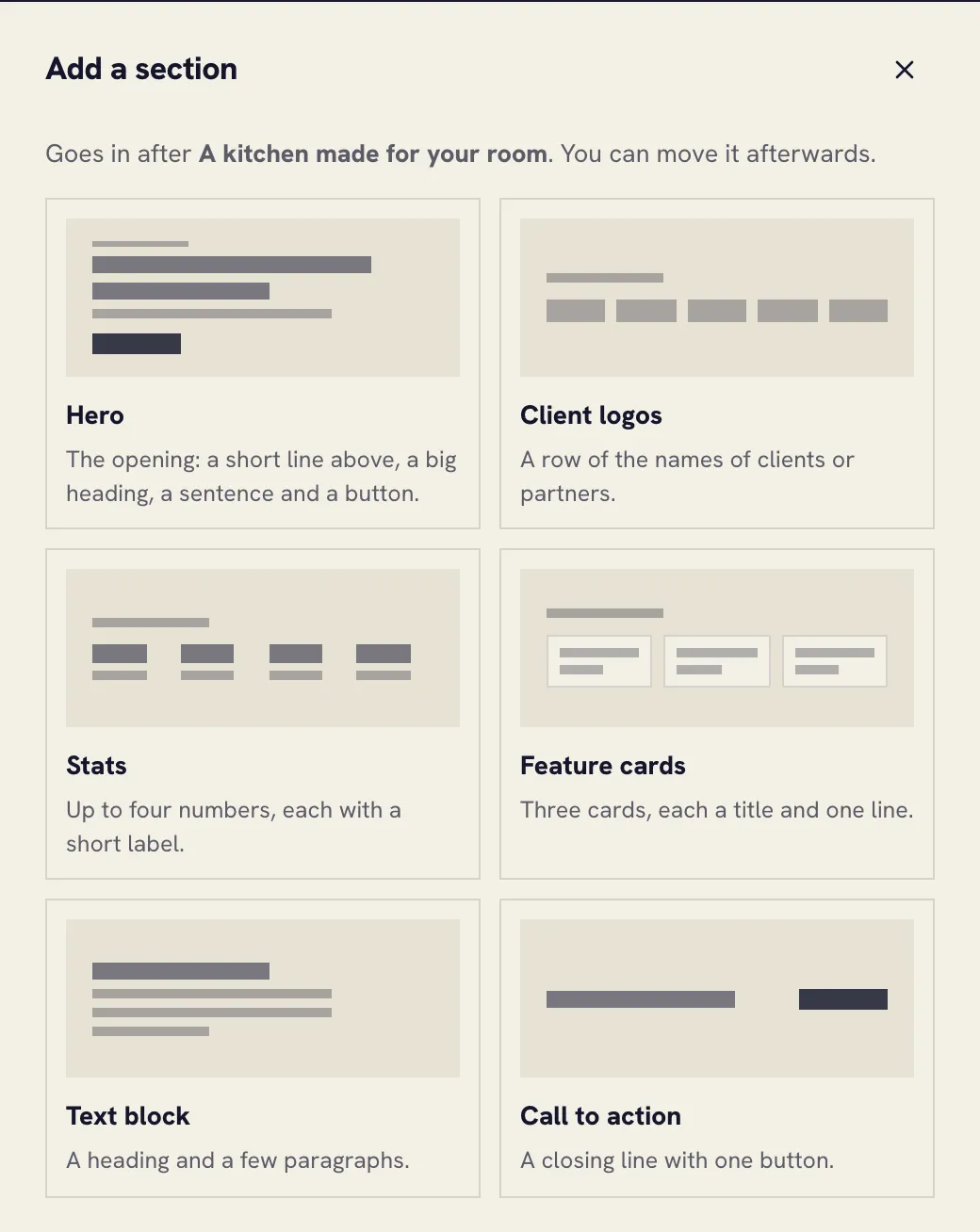
| Section | What it’s for | How to fill it |
|---|---|---|
| Hero | The opening: a short line above, a big heading, a sentence and a button | One field each |
| Client logos | A row of client or partner names | Names separated by commas |
| Stats | Up to four numbers with a short label | 300+|rooms fitted |
| Feature cards | Three cards, each a title and one line | Kitchens|Made to measure |
| Text block | A heading and a few paragraphs | One field each |
| Call to action | A closing line with one button | One field each |
In Stats and Feature cards, the bar | separates the two parts of one item.
Moving a section
Drag it by the dotted handle that appears at its left in the outline. Or pick it and press Move up or Move down above its fields.
Copying and removing a section
Point at a section in the outline to see its two buttons: one copies it, the other removes it. Both are also above the section’s fields.