Every page of your website has a card on the Pages screen. Press a card to edit that page.
In the Hall Website › Pages
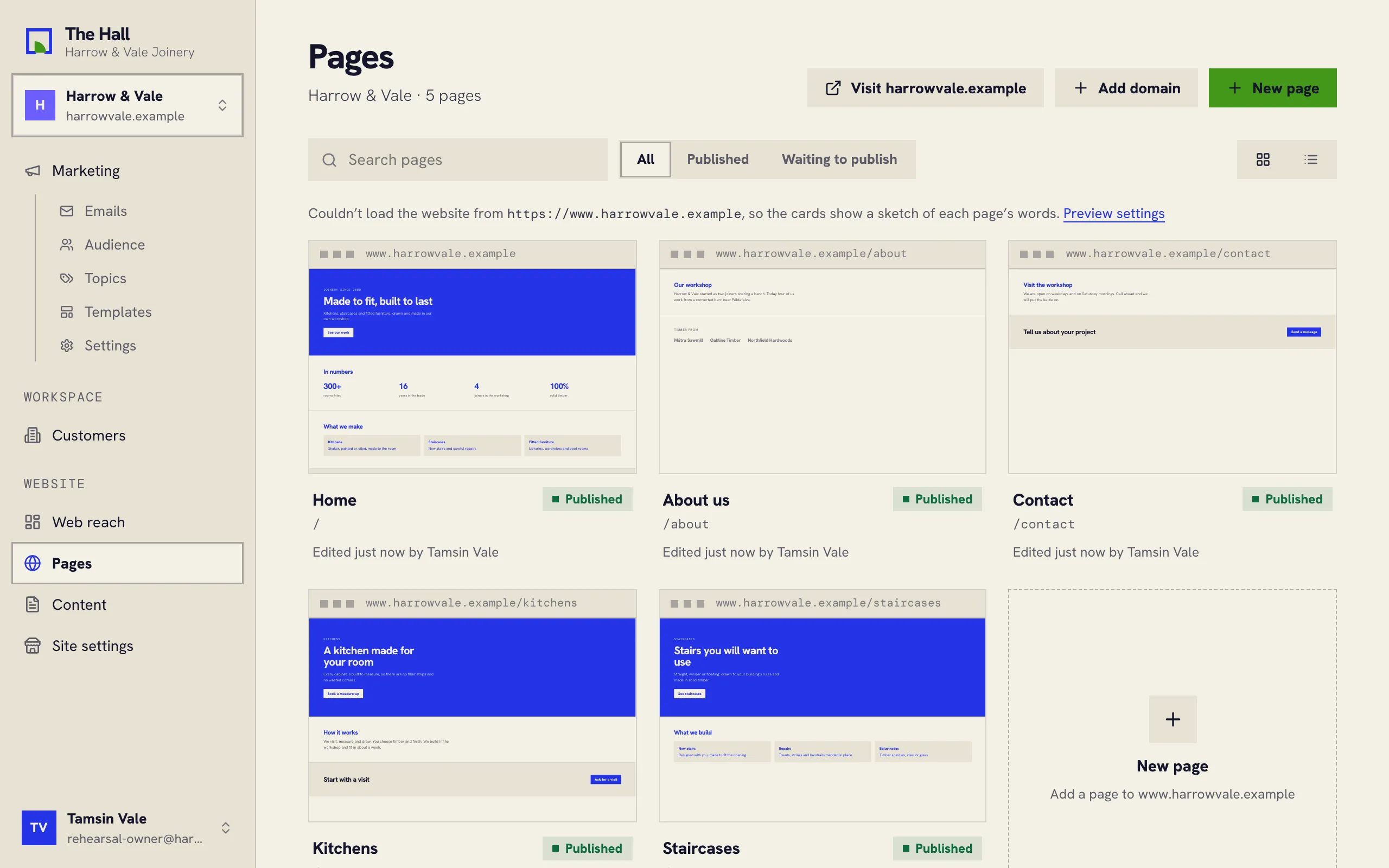
Reading a card
Each card shows:
- a picture of the page: the real website when the Hall can reach it, otherwise a sketch of its words;
- the page’s name and address, such as
/kitchens; - its state: Published, Unpublished changes (edits waiting to go live) or Draft (never published);
- who changed it last, and when.
Narrowing the list
- Search pages finds a page by its name or address.
- All, Published and Waiting to publish filter by state. Waiting to publish is the quickest way to see what still needs publishing.
- The two buttons on the right switch between cards and a plain list. The Hall remembers your choice.
Adding a page
- Press New page.
- Give it a title. The Hall suggests an address from it, which you can change; it starts with a slash, such as
/workshop. - Press Create page. The page opens, ready to edit.
A new page is a draft. It isn’t on your website until you publish it.