Save draft keeps your edits in the Hall. Publish puts them on your website. Until you publish, your website keeps showing the last published words.
In the Hall Website › Pages › a page › the buttons at the top right
Publishing a page
- Press Publish.
- Check the list of what will change on your website: each section added, changed, moved or removed, and any change to the title or search fields. Press Show on a line to see that section.
- Press Publish.
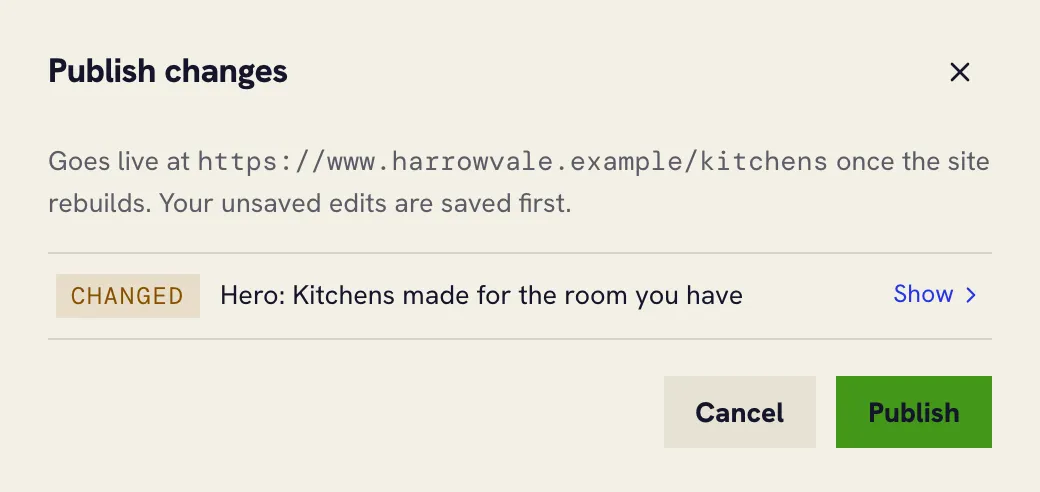
Your website then rebuilds with the new words. That usually takes a minute or two; the Live page preview shows the change once it’s done.
Throwing away unsaved edits
The curved arrow at the top of the editor, Discard unsaved edits, appears once you’ve changed something. It puts the page back as it was at your last save.
Going back to an earlier version
Every save and every publish is kept.
- Press the clock at the top of the editor, Version history.
- Pick a version. The preview shows it, read only.
- Press Restore this version to put its words back in your draft.
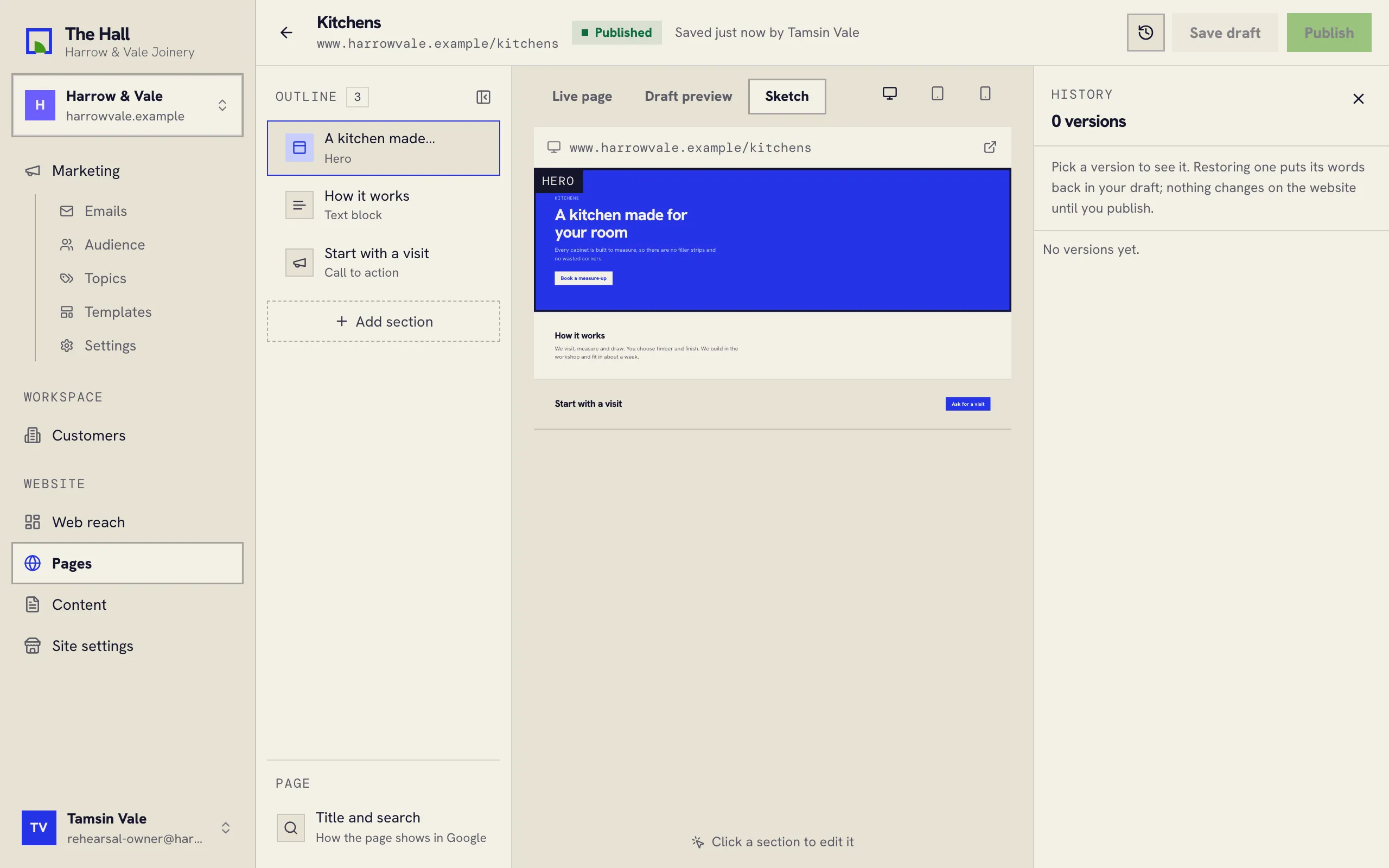
Restoring changes only your draft. Publish it to put that version back on your website.