Open a page, pick a section, and change its words in the panel on the right. The preview in the middle shows the page as you go.
In the Hall Website › Pages › a page
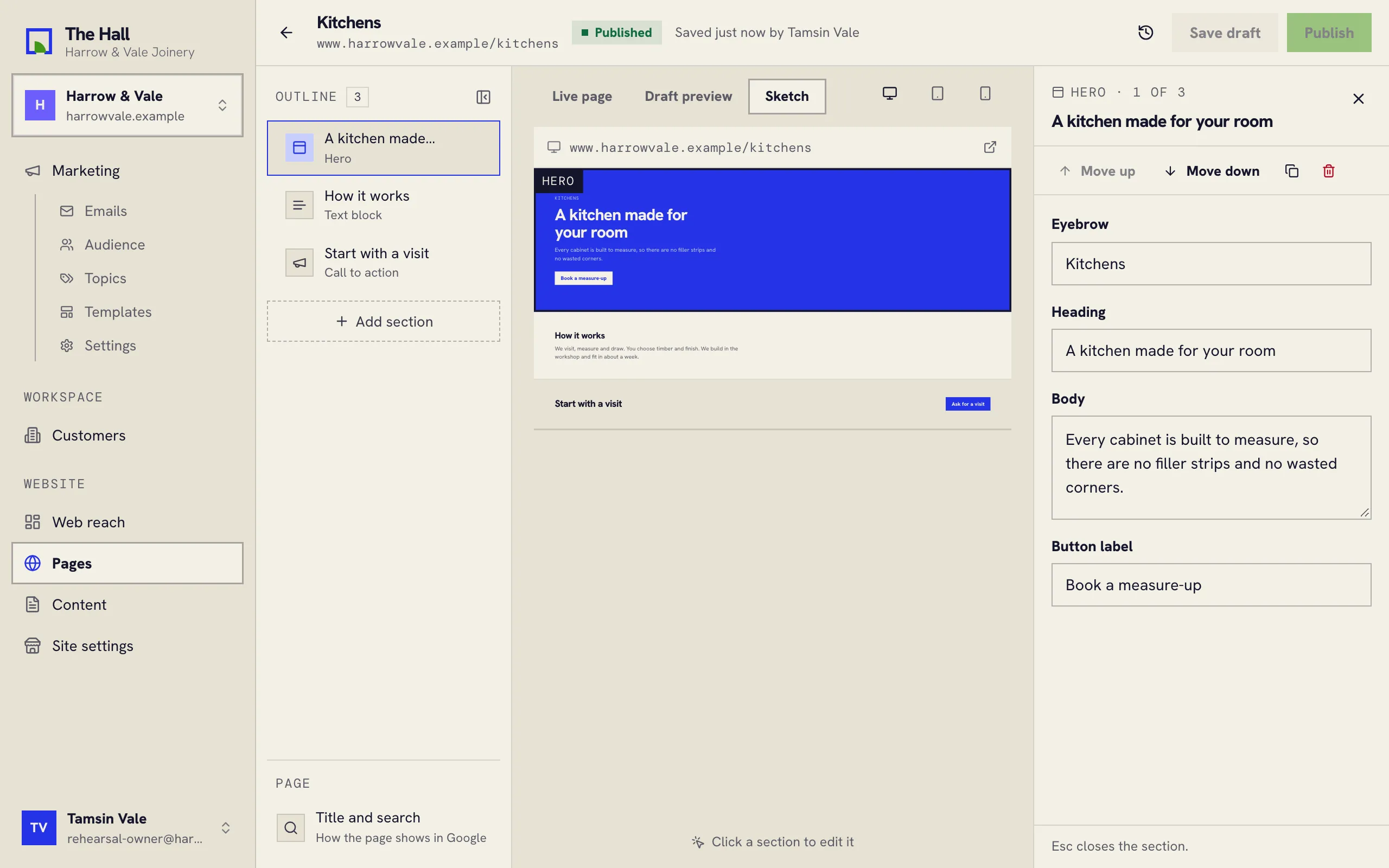
The three parts of the editor
- The outline, on the left, lists the page’s sections from top to bottom. A small square beside a section means it has changed since the page was last published.
- The preview, in the middle, shows the page.
- The fields, on the right, are the words of the section you picked.
Changing the words
- Pick a section in the outline. In the Sketch preview you can also click the section itself.
- Change its words in the fields on the right.
- Press Save draft (or ⌘S on a Mac, Ctrl+S on Windows) to keep your edits, or Publish to put them on your website.
Press Esc to let go of a section and see the whole page.
The three previews
Above the preview, choose what it shows:
- Live page: your website as it is now. It shows your edits only after you publish and the site rebuilds.
- Draft preview: your website’s real design with your saved drafts. It needs setting up once; see Draft preview.
- Sketch: your words, including edits you haven’t saved, drawn simply. Click any section to edit it.
The three small screens on the right show the page as wide as a computer, a tablet or a phone.